Recently I bought one of these cheap emulator handhelds listed as RS36s on aliexpress and alike. The one I bought is called SF3500, was only about 30€ and came within a week. The handheld looks a bit cheap, but has a large screen and the buttons are okay-ish.
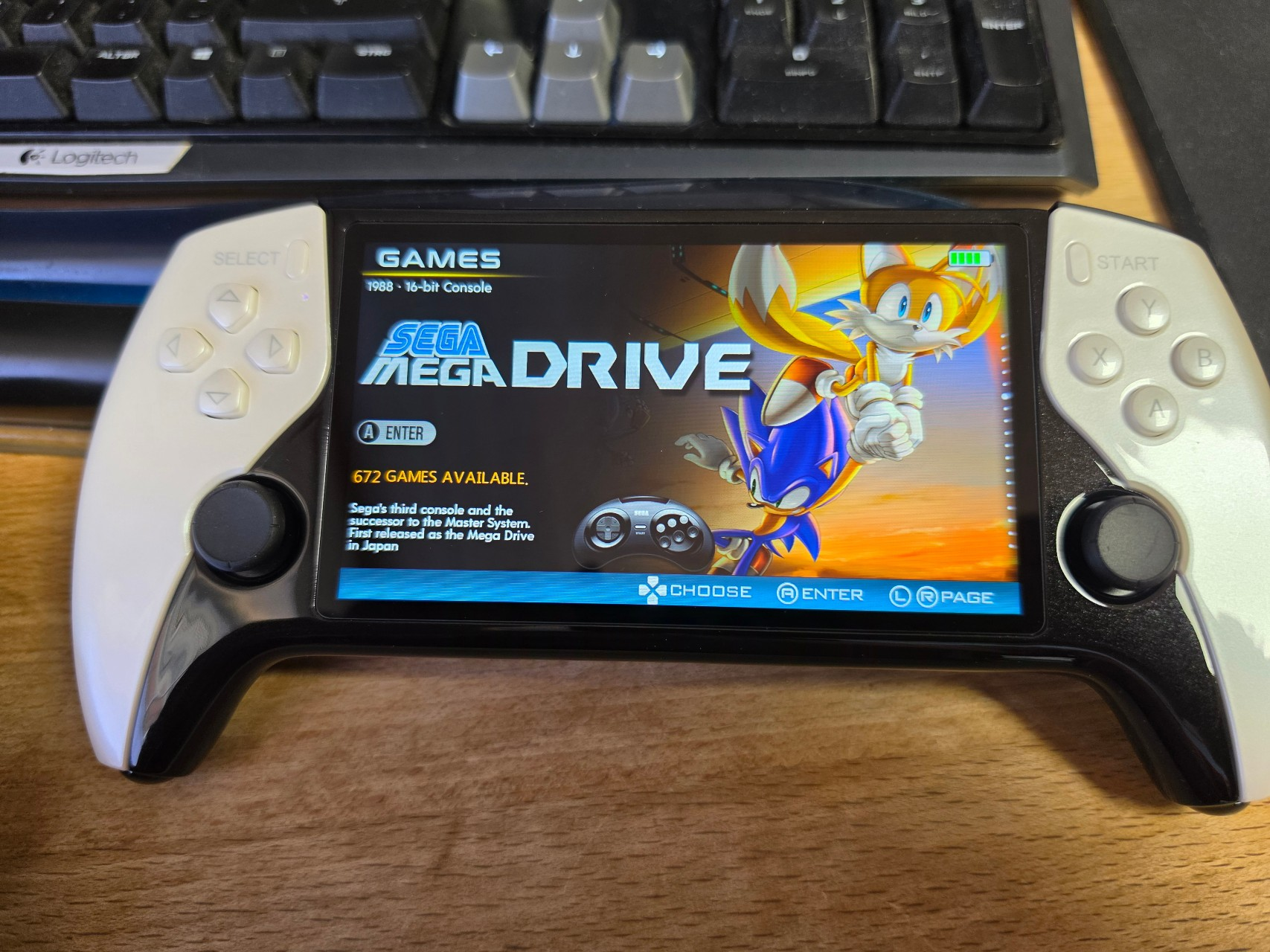
Starting the device showed a fully stuffed ROM list for various platforms. In total, according to the menu, there were >20k ROM images, which is a lot. Not sure if this is fully legal in all aspects, but you can download them from the Internet Archive anyway :)
The SD card could not be read on windows, as the partition table was faulty. This is nothing unknown to the community, somewhere inbetween image copying it seems some bits were flipped. Intentionally or not, there are guides on how to fix it using TestDisk.
After fixing, you can manually add your favorite ROM images, but the menu won’t show them. For that you have to edit file lists. There are scripts online that should work, but I wanted a comfortable browser based frontend.
As this is a bit annoying I made, uhm sorry, let the AI make a Chrome based frontend for that task.
You can find it here. Important: Works with Chrome based browsers only. It works locally, does only load a few scripts from the web – libarchive and fflate from jsdelivr.
Unfortunately chrome doesn’t allow to let it run locally only, except if you package these scripts along with the HTML. I did it locally, tell me if you want the local-only version. Anyway, it does not up- or download anything except these de-/compressor libraries to automatically uncompress .7z and save as .zip, as the handheld firmware can’t deal with .7z.
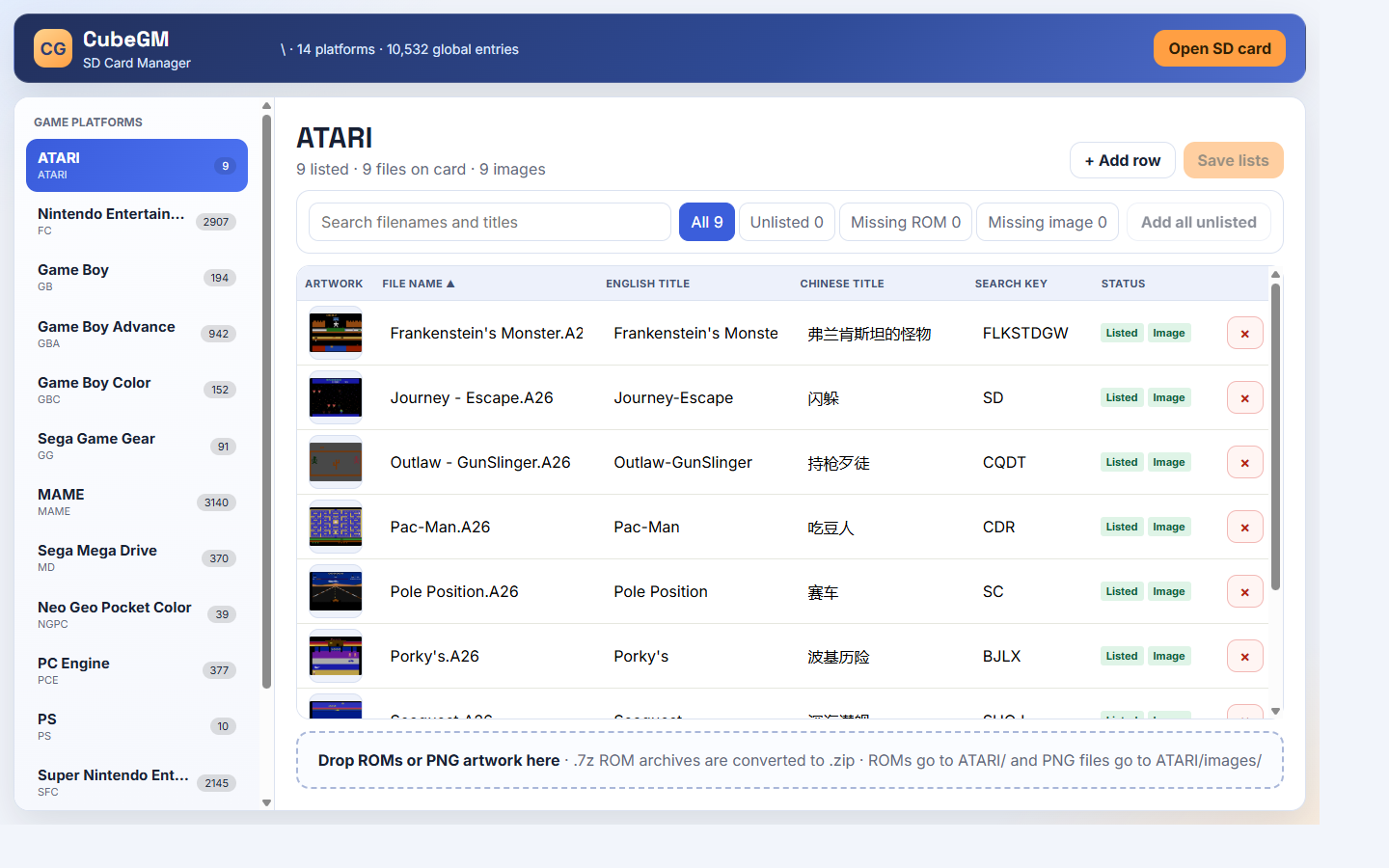
Simply open the SD card’s root directory and it will show you the ROMs you have, fix duplicates, allows you to add existing images which are not in the file list yet etc. You can also assign screenshots and set favorites. Speaking about de-duplicating… I realized that the stock firmware file lists had all entries twice and in the end there are “only” 10k ROMs. Still a lot.
Not sure for which systems this tool works for, but the handheld I have has a folder named “cubegm” where the system binaries and some configuration files.
Edit:
Digging a bit deeper shows that the files under /cubegm are partially encrypted.
At least the binary under /rootfs/use/bin/hcprojector uses a password to read files.
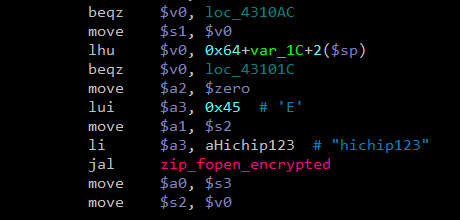
If you use some python scripting, this is what you can get from their UI_Res.cpd:
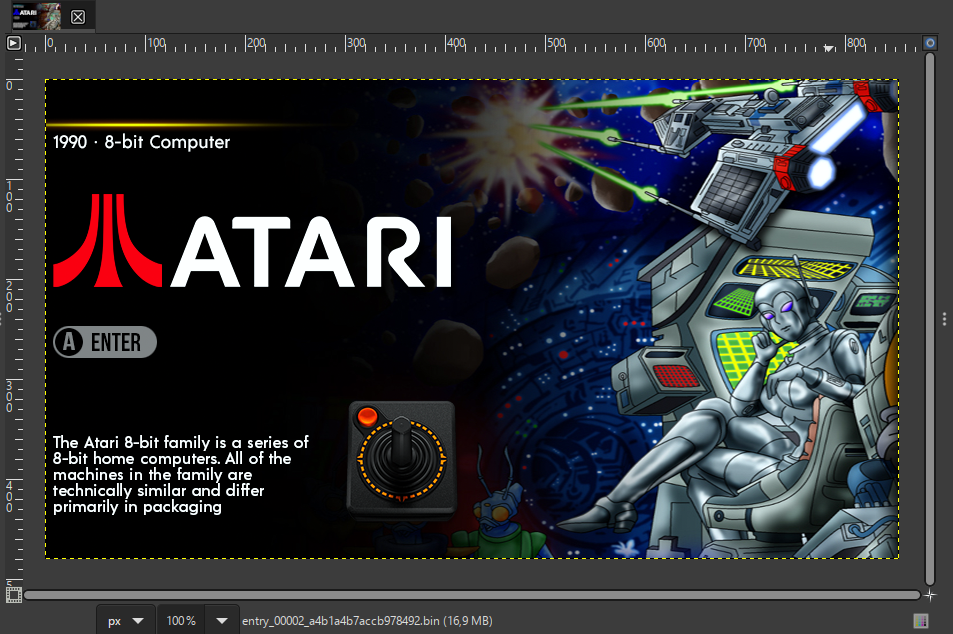
Technical details:
Each record starts with the custom signature WQW\x03 instead of the normal ZIP signature PK\x03\x04. The remaining header fields follow the standard ZIP local-header layout, including compression method, CRC32, compressed size, uncompressed size, filename length, and extra-field length.
The contained resources use raw DEFLATE compression. They are not ZIP-encrypted. All observed entries have general-purpose flags set to 0x0000. The hard-coded password hichip123 is only used by the firmware when libzip reports that an entry is encrypted.
The filenames are obfuscated and therefore appear as binary byte sequences. The extracted payloads are valid after DEFLATE decompression and CRC verification.
The container ends with several trailing bytes and has no standard ZIP central directory, so common archive tools only recognize the first record after patching its signature. A custom parser is required to walk through all records using their stored compressed sizes.
Related Posts
[ESP32] WebFlasher in ESP-IDF
[ESP32] WebSerial / WebUSB – another Rabbit Hole